
Tattoo Kits
SKU: sb25102078707027222
Price and availability
Sorry, the item is sold out.
Learn More
Shopping Security
Safe Payments
Privacy Protection


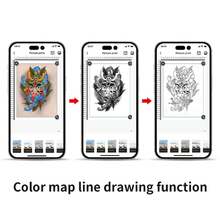
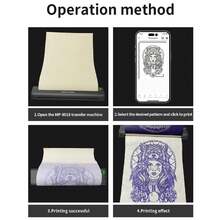

Item Type: Transfer Machine Material: ABS, Electronic Components Color: Black Battery: Built-in 2000mAh lithium battery Input: 5V, 2A Charging Port: Type-C Interface: USB, Bluetooth Transfer Printer Size: Approx. 265 x 58 x 30mm / 10.4 x 2.3 x 1.2in Print Type: Thermal Printing Auto Power Off: 30min (optional via app) Print Density: Light, Moderate, Heavy (optional via app) Standby Time: Approx. 30 days Digital Dot Printing Time: Approx. 1.3 hours Continuous Printing: 90 sheets of transfer paper Applicable Printing Paper: Approx. Standard A4 thermal printing paper (210 x 297 mm / 8.3 x 11.7 inches) Compatible with connected devices: Mobile phones, tablets, PCs (for XP, for Windows 7/8/10) Key Functions: Power Button: Press and hold to turn on/off; the indicator light flashes green. While charging, the indicator light flashes green, and when fully charged, it remains green. Lid Open Button: Press the lid open button to open the lid and clean it or clear paper jams. How to Use 1. Install the App Scan the QR code on the packaging to download the app. 2. Power On/Off On: Press and hold the power button for 2 seconds until the indicator light turns on. Off: Press and hold the power button for 2 seconds until the indicator light turns off. After turning on the printer, you can connect it via Bluetooth through the app. If this isn't possible, check if the printer is powered on. If not, you can connect it with a full charge. 3. Paper Feed Identifying the Print Paper Direction ※ Insert the yellow side up and the white side down into the printer's input port. The paper will be automatically sucked in. If it isn't automatically sucked in, you can also manually open the cover. 4. Paper Jam, Abnormal Processing, and Cleaning Press the right side of the host to open the cover button; the cover can be rotated to a certain angle. 5. App Connection After turning on the device, open the app, click the "Not Connected" button in the upper right corner, go to the "Add Device" list, and click the device to connect via Bluetooth. You can print. Tip: When connecting, make sure your phone's Bluetooth is turned on and the device is near it. 6. Printing Paper Type It is recommended to use specific paper. Non-specialized paper may be unsuitable for the environment and cause jams or incorrect feed readings, which can easily lead to skewed prints. 7. Frequently Asked Questions Q: Did the app add devices and not connect to the device? A: Check if the device is turned on to ensure Bluetooth is working properly. Q: What should I do if the device is not printing? A: 1. Check if the mobile phone's Bluetooth is turned on and rule out the possibility of others connecting to it. 2. Check if the tattoo printer is jammed. 3. The print head is overheated. If so, wait for it to cool before attempting to print. Q: Why is everything printing blank and empty? A: It may be because the printing paper is not installed correctly. See the introduction for replacing and reinstalling it. Q: Why are the printed words faded? A: 1. Check if the device's battery is low. 2. Check if the print head is stained. Gently wipe it with a cloth moistened with alcohol. Package List: 1 x Transfer Machine 1 x USB Charging Cable 1 x Manual
| Power Supply | Wall Plug |
| Texture | Tint |
| SKU | sb25102078707027222 |
Your payment at SHEIN is secured with global payment security certifications.




SHEIN does not share personal information about you with nonaffiliated third parties. All your information and privacy will not be compromised.